

SABER Text effects
- milesstewart
- Feb 22, 2021
- 3 min read
Updated: Mar 10, 2021
Saber is a very cool and easy effect which can apply animated high definitions to outlines for objects such as images, shapes, masks and text.
To begin using saber, create text, and also create a new solid layer. With this solid layer selected, select effect < video copilot < saber. You should now have this.

Select the saber solid layer, and go to the left of the screen where the saber effects are located, and select the drop down menu customise core. From here you can choose the core type, of which is the object you are applying the saber layer to. In this case, we are applying it to a text layer, so in customise core, select text layer, and then select the file you want it to apply to.

You have now applied saber to text, and there are many different presets, modes and adjustments you can now make to the text layer. You can hide the text layer, to only have the outline of the text, of which can sometimes look very good. If you move the text layer around, the saber layer follows it, but if you just select the saber layer, the text doesn't follow automatically.
Here is what you should have a this stage (I am using the neon preset).

To have multiple saber text layers in your project, or to make the background transparent, seeing as it is a solid at the moment, you have to change the mode of the solid layer, screen being the best mode to change it to so that the only thing visible from the solid layer is the saber effect. I have showed this by applying a background, and changing the mode of the saber layers to screen, so that they are transparent.

You can also easily apply saber to things that are not text layers. Select layer new solid again, and using the pen tool, create a shape, to create a mask. You can also create a mask of any layer, using the pen tool, so for instance if you wanted the sun from a picture to have saber applied to it, select the image layer, use the pen tool to create a mask of the sun or part of the image you want saber applied to, and then with the mask created select video copilot < saber, and then go to customise core again, but instead of selecting text layer, select layer mask, and then select the layer you have masked.

You can also easily animate saber layers. Start of by applying the end offset timestamp found in the effects panel on the left, under saber effects. For all saber layers, turn on the end offset timestamp, and at the start of the project select the end offset to 0%. Go to the desired time of when you want to end the scene, and change the end offset to 100%. This makes the saber effect fade in, as you can see below.

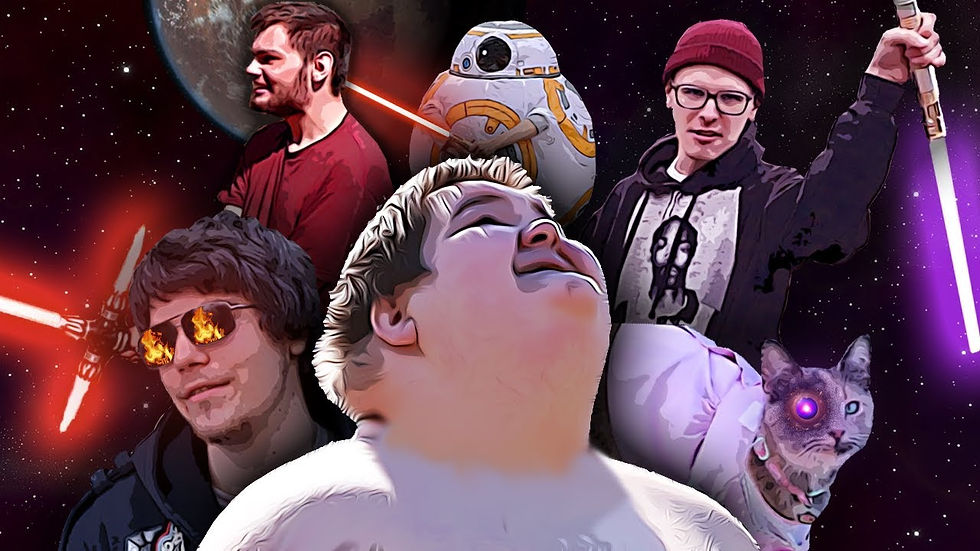
The saber effect is a great plugin, and you can use it on almost every project, due to how professional is makes text, as well as mask layers. Specific situations where saber will come in very handy is thumbnails for YouTube videos, lyric videos for songs as well as animations of masks within dance scenes. I highly recommend downloading saber and giving it a play around.

Comments